
Congratulations, you’re ALMOST an active user of SoloLink®!
Let’s get you set up properly to ensure you’re fully protected as you work. It’s a straightforward process:
First, we’ll get you registered, then we’ll tailor your settings to suit your needs.
Registration
Step 1
You’ll have received a text message inviting you to download the SoloLink® app, which also includes your user email address and temporary password.
- Click the link in the message to be taken to the on-line store for your brand of phone and download the app.
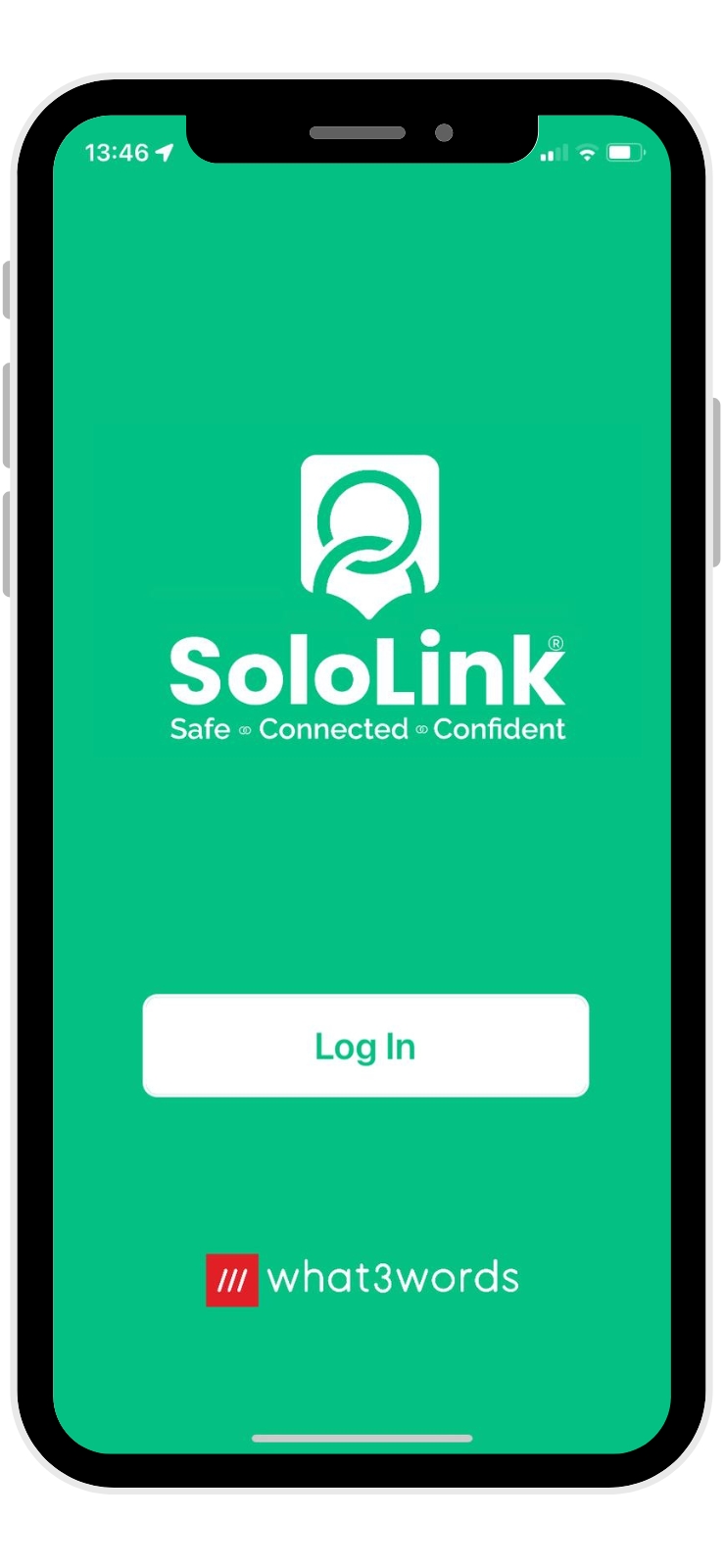
- Once downloaded, press the SoloLink® app icon to open it, then press the Log-in button.
Step 2
If your phone prompts you to, please make sure you allow notifications.
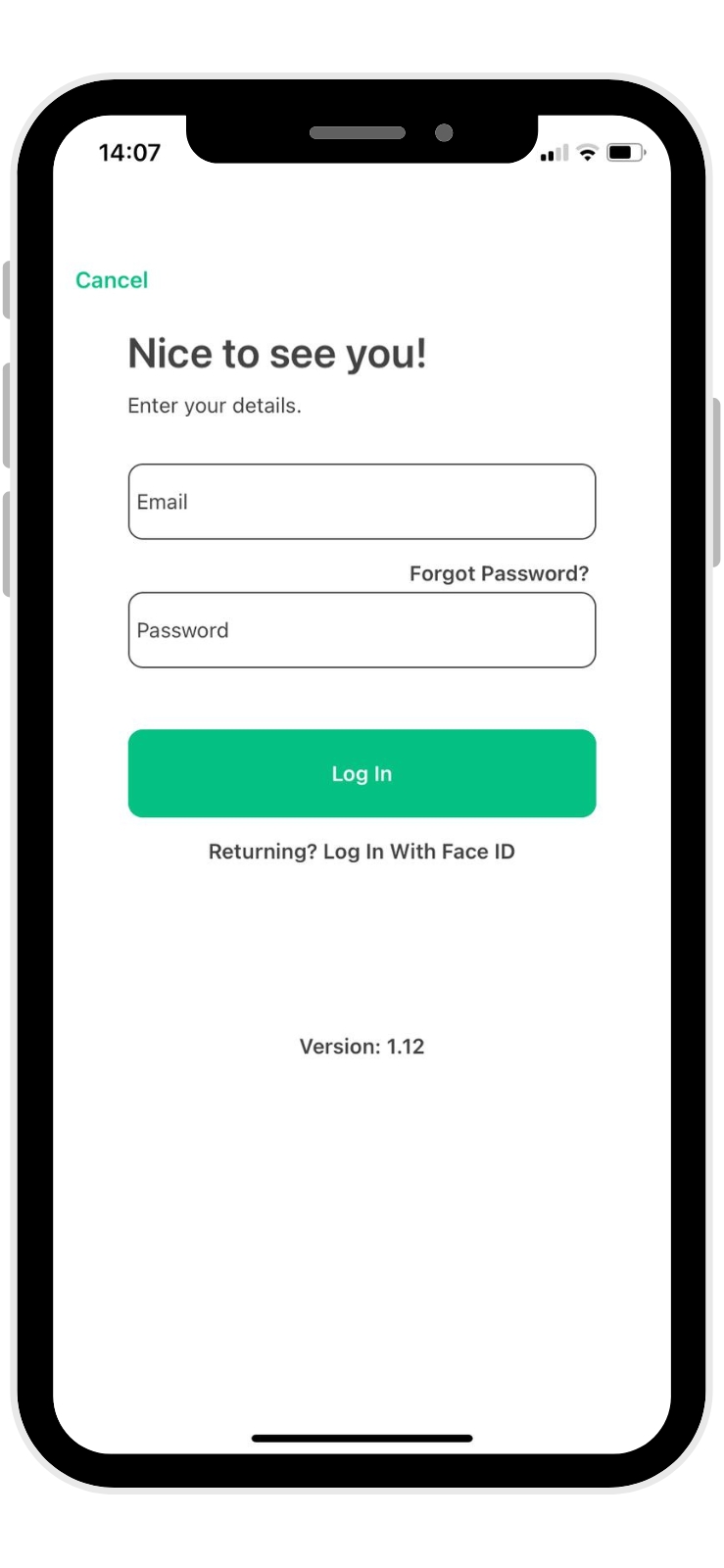
Enter the log-in details from the text message already received. Once confirmed, this will send you to a password change screen.
Step 3
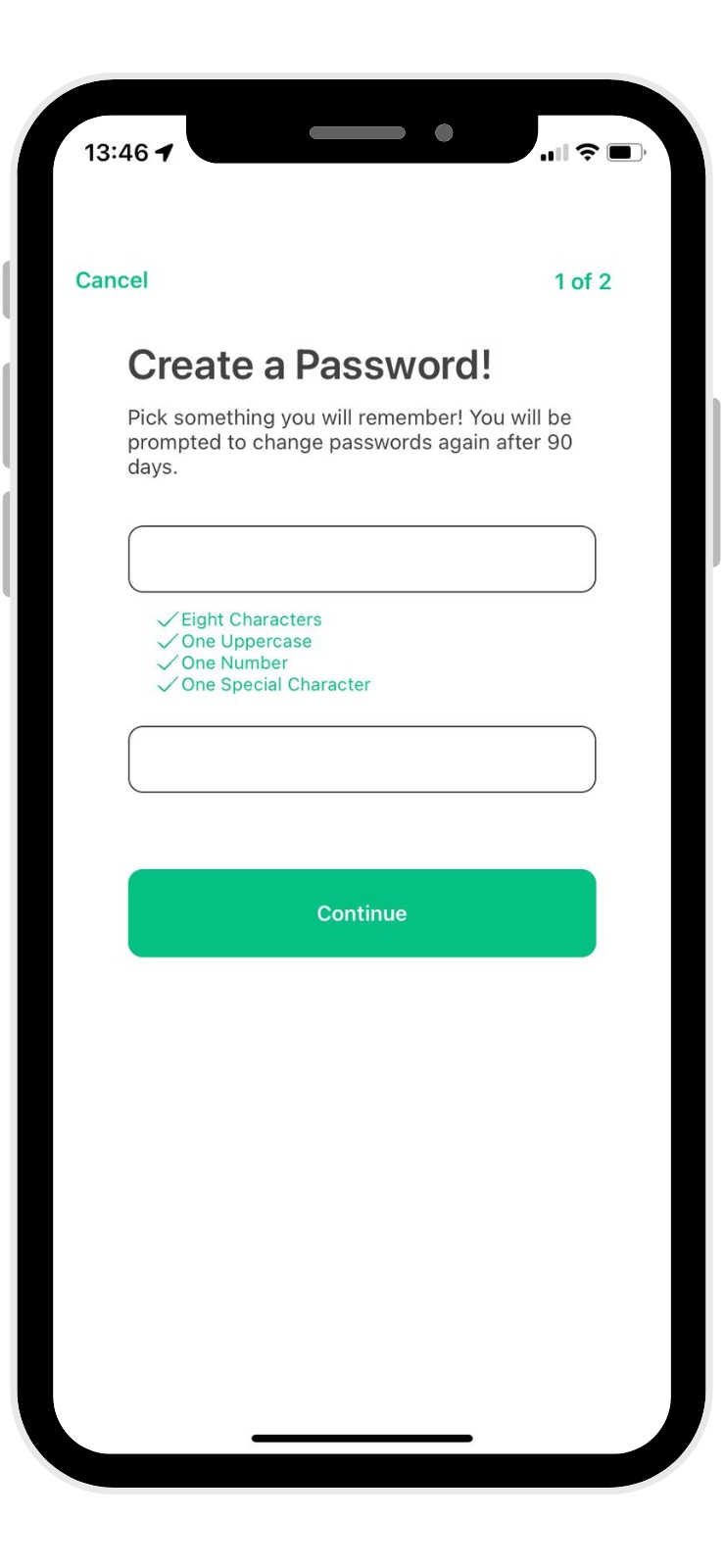
You only need do this once, but please create a password that includes a minimum of eight characters, including at least one capital letter, one number and one special character (for example a ! a £ or a #).
Step 4
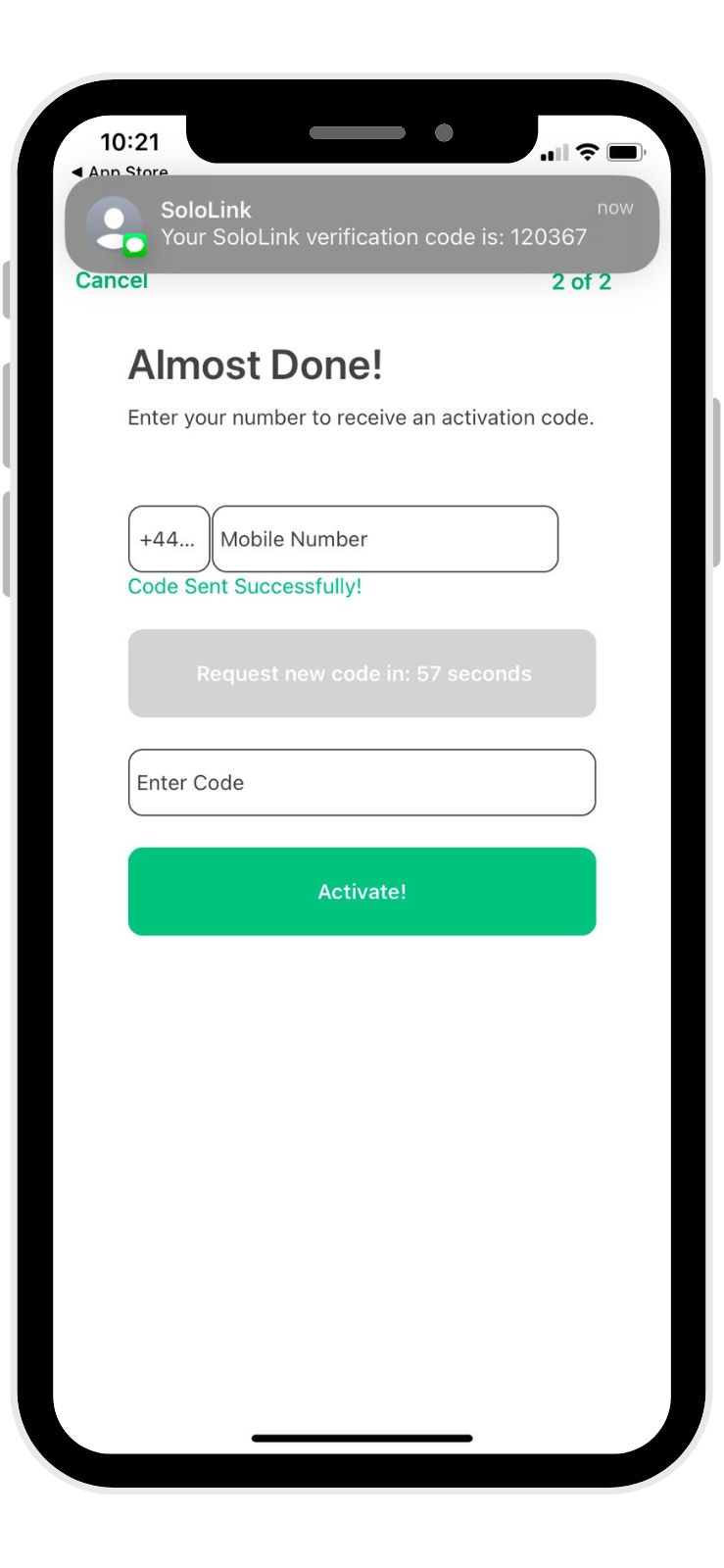
Once they match and are confirmed, you’ll be asked to enter and confirm your mobile phone number.
You’ll receive another text message with a unique six-digit code.
You’ll need to enter this to then ACTIVATE SoloLink® for use.
Step 5: EMERGENCIES SET-UP
To make sure we can respond to any incidents or situations that you encounter, we need to gather some emergency and escalation details.
ESCALATION SETTINGS
The person you choose may be pre-determined by your employer as being you Supervisor or Manager, whose details may change from time to time, but you must choose someone. Your emergency contact is the person that SoloLink® Control will call if they cannot reach you.
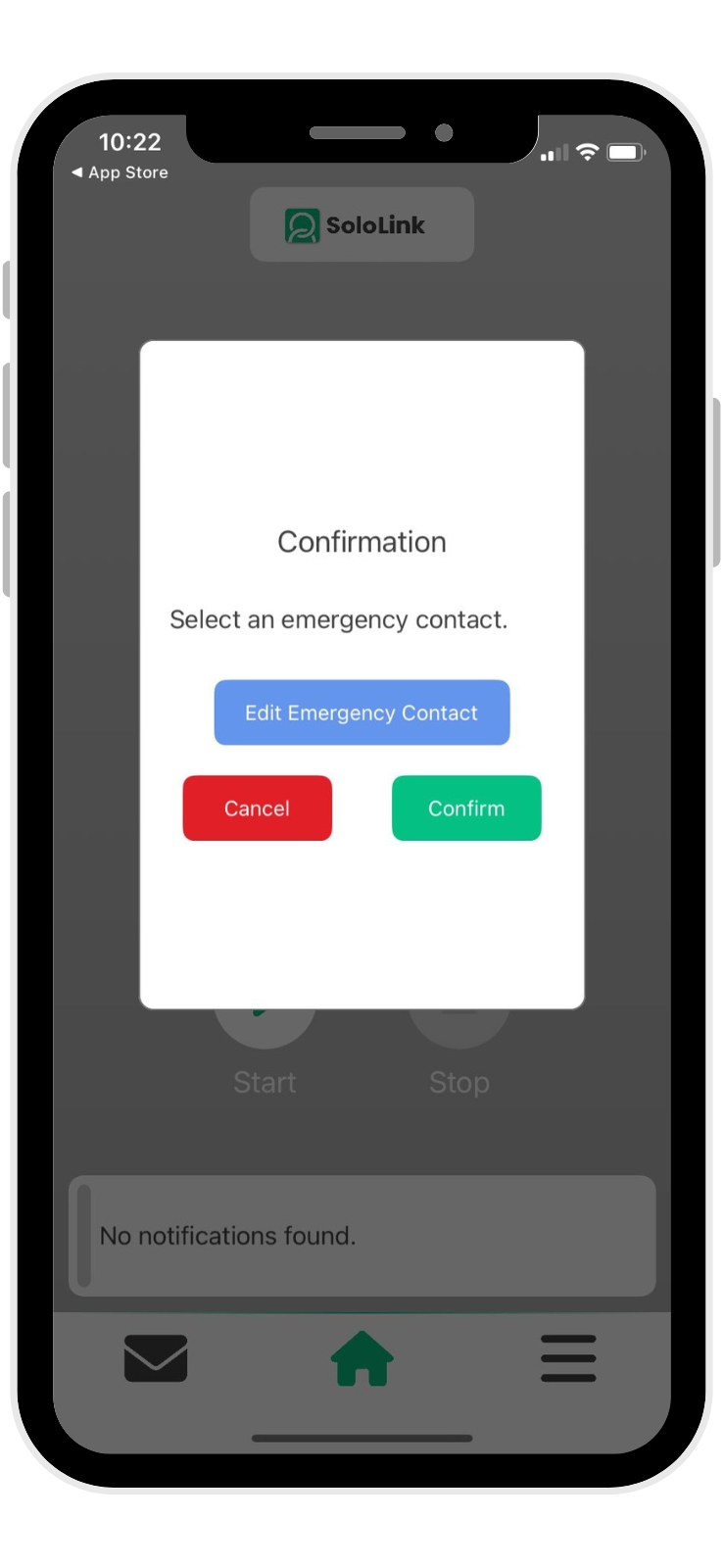
- Tap on Start
- The Emergency Contact prompt will appear, tap on Edit Emergency Contact.
Step 6
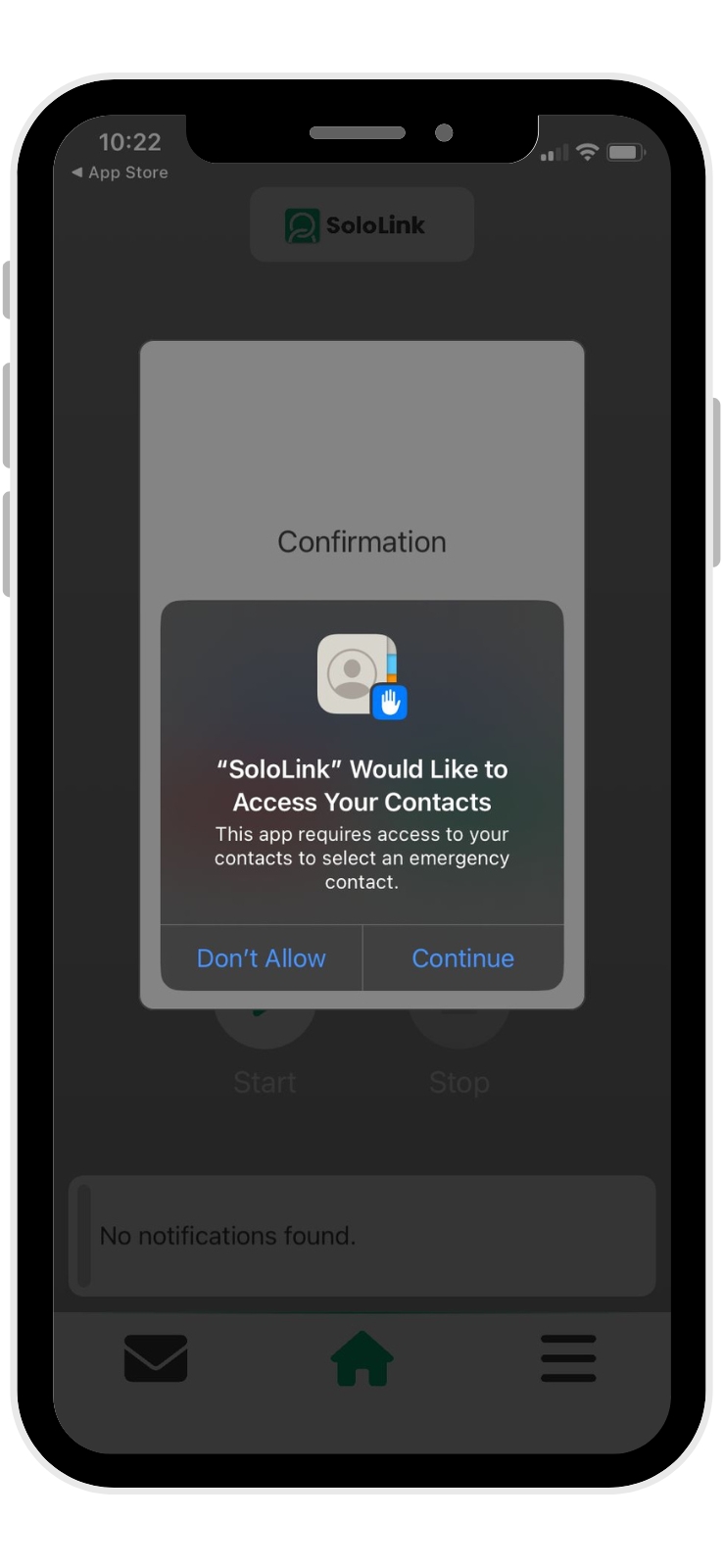
The system will ask you for permission to view your contacts list, please allow this for your whole phonebook for ease of future change (if needed).
Please note, we cannot see all your contacts, just the contact details you confirm into SoloLink® as your one Emergency Contact.
Step 7
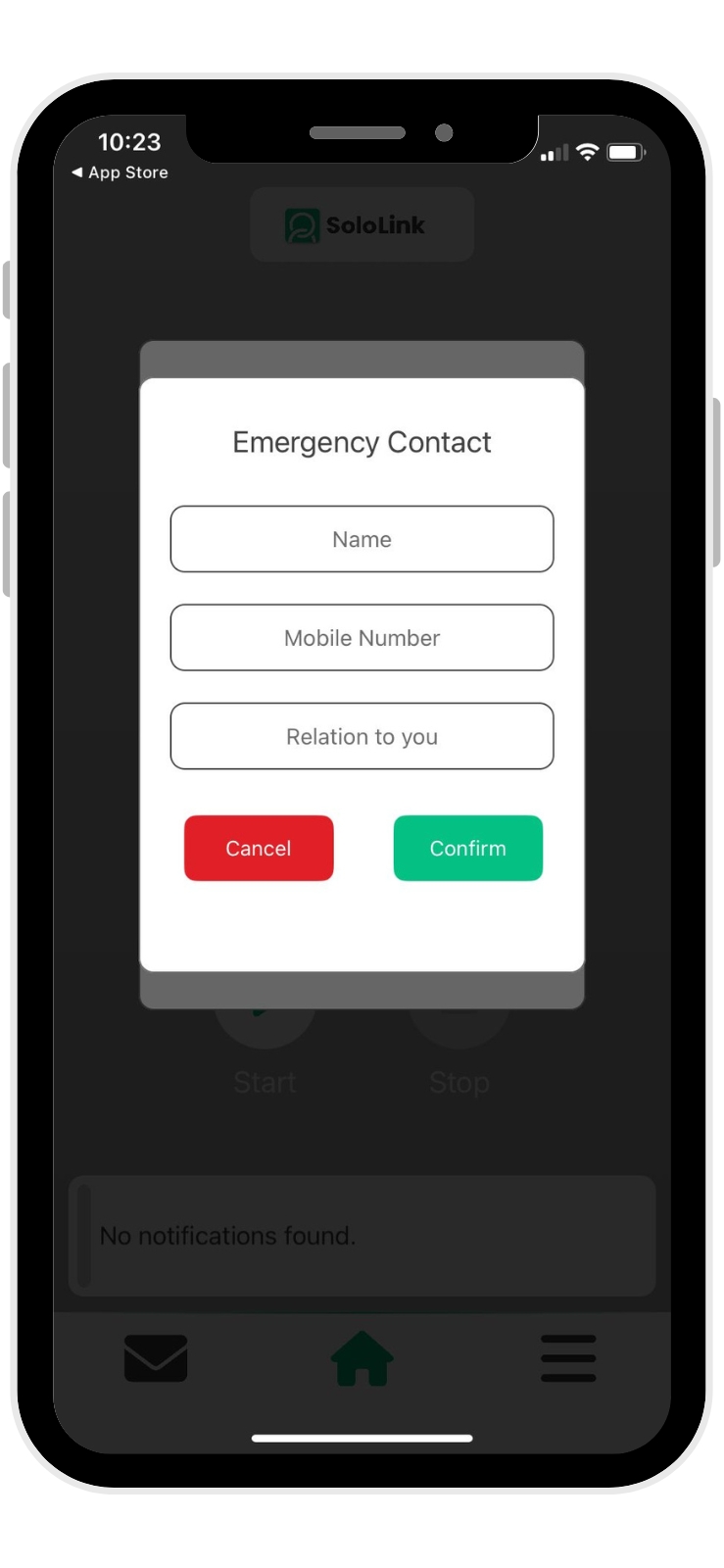
Select the most appropriate Contact and confirm that they are the one you want.
If you enter your emergency Contact manually, you’ll need all contact details, Complete the Relationship to You field and confirm.
If you don’t need to change your Emergency Contact, their details will now auto-fill every time you use SoloLink®.
Step 8: LOCATION SETTINGS
Without knowing where you are when you use SoloLink®, there’s not a lot of point in having it, is there?
So we need to activate location settings for the app.
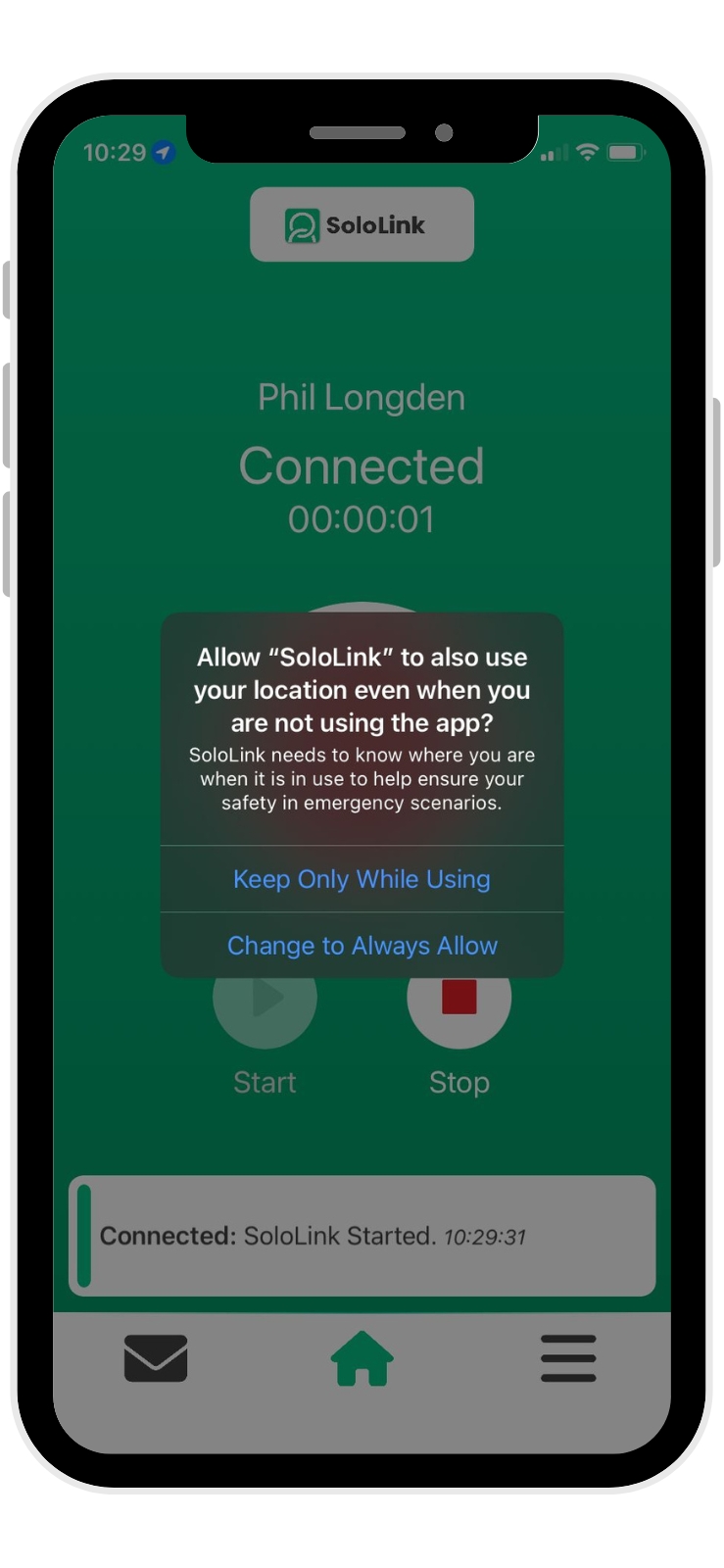
A pop-up will appear asking you to confirm that want the app to track your location, please allow this.
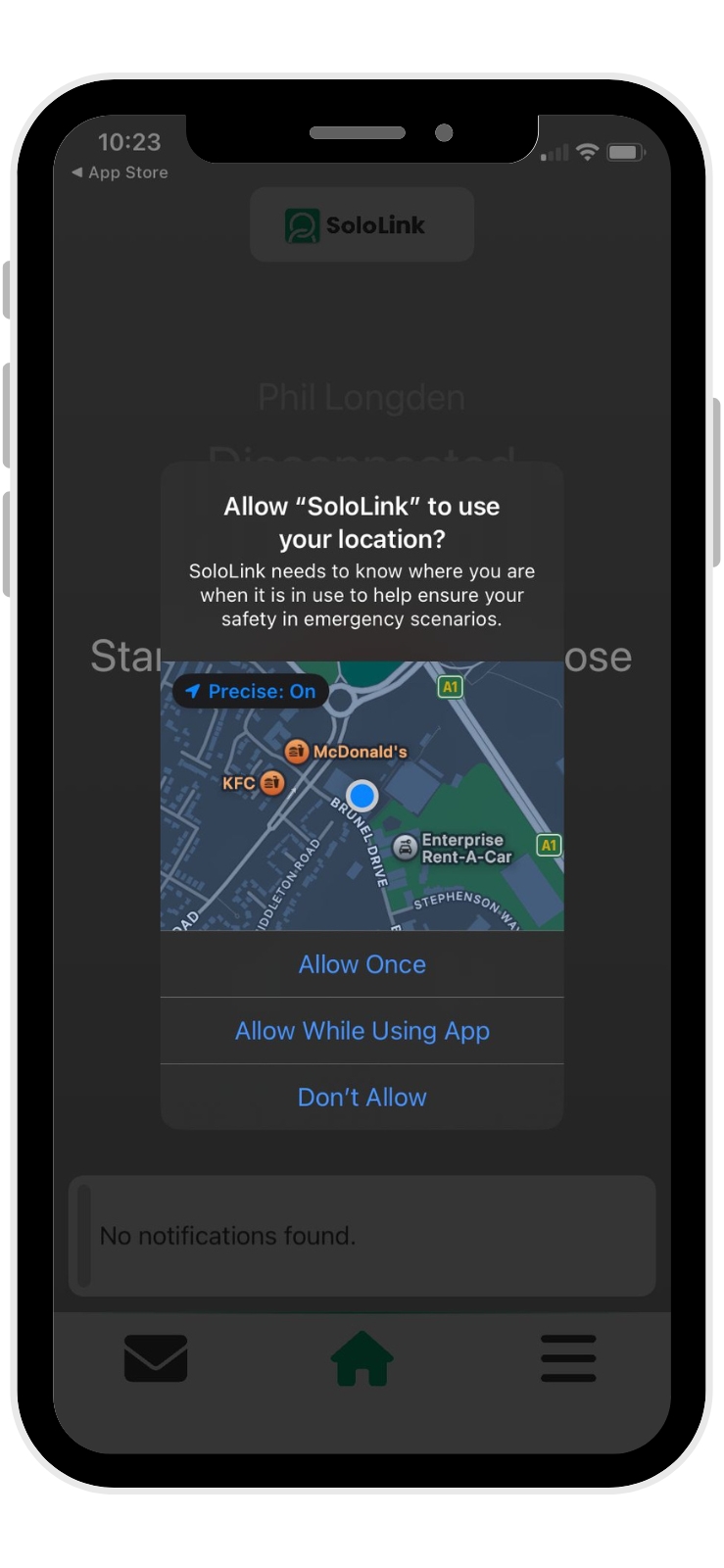
THE FINAL STEP!
You may also see another pop-up asking you if this is OK all the time, please allow this.
THAT’S IT.
YOU’RE NOW READY.